1.
|
Switch to the Contact view.
|
2.
|
Select the contacts that you want to print.
|
4.
|
Select a printing style:
|
·
|
Choose List Style to print the information as it appears on the screen.
|
·
|
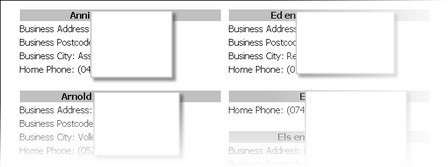
Choose Card Style to print a multi-column list where the contact information is printed as a card.
To print a list of phone numbers for the selected contact(s), click Print Phone related fields about this contact.
|
5.
|
Change lay-out settings, like font, page numbering and column spacing.
|
6.
|
Choose whether you want to print all contacts or just the selected.
|
8.
|
Click [OK] to confirm.
|
You can also select the print items, set print page, printer font and some options if you want, click Print to print contents.
Tip!
Click [Print Preview] to preview the print result.
Notes:
•
|
The printed fields in List Style and Card Style are the same as they appear in the Contact list view. See Change view to add or remove fields to print.
|
See Also:
|
